A BIM model is much more than a 3D representation of a building, as it's a central source of project information used by architects, engineers, contractors, and project stakeholders throughout the building lifecycle. As projects evolve, BIM models naturally become larger and more complex. Without regular maintenance, even a well-developed model can become inefficient, difficult to manage, and prone to coordination issues.
This is where Revit model health checks play a vital role.
Performing regular health checks helps ensure that your BIM models remain accurate, lightweight, collaborative, and ready for project coordination. Whether you're a BIM student, Modeler, Coordinator, or Manager, maintaining a healthy model is an essential part of delivering successful BIM projects.
Why Model Health Matters in BIM
In professional BIM workflows, model quality is measured by more than just geometry. A healthy model should also be:
- Easy to navigate and edit
- Efficient for team collaboration
- Free from unnecessary errors
- Optimized for coordination
- Reliable for documentation and project delivery
Poor model health can lead to longer synchronization times, coordination conflicts, inconsistent project information, and reduced productivity across the project team.
Regular health checks help prevent these issues before they affect the overall project.
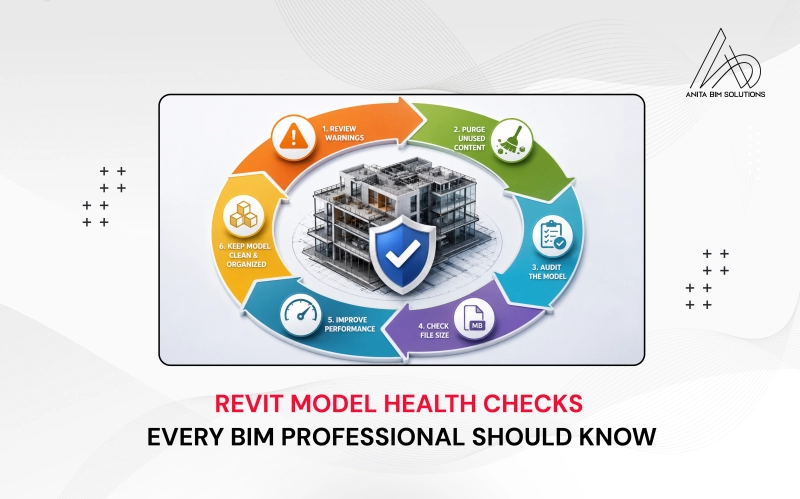
1. Review and Resolve Revit Warnings
Revit automatically generates warnings when it detects conditions that could affect model quality or consistency. While some warnings are minor, others can impact coordination, documentation, and overall project reliability.
Common examples include:
- Overlapping elements
- Duplicate instances
- Unjoined geometry
- Inconsistent constraints
- Room boundary issues
- Duplicate marks
Ignoring warnings over time can result in a model that's increasingly difficult to manage and coordinate.
Best Practice
Review warnings regularly instead of waiting until project milestones. Focus first on warnings that affect geometry, documentation, or interdisciplinary coordination.
A model with fewer unresolved warnings is generally more stable and easier for teams to work with.
2. Purge Unused Content
As projects progress, many families, materials, line styles, view templates, and other project components become obsolete or remain unused.
Although they may not be visible within the model, they still contribute to unnecessary file growth.
Purging removes these unused project elements, helping to:
- Reduce file size
- Improve model organization
- Simplify project management
- Improve overall performance
Best Practice
Perform a purge before major project submissions or at key project milestones. Running the purge command more than once often removes additional unused elements that become available after the initial cleanup.
3. Audit the Model Periodically
The Audit function checks the integrity of the Revit project database and helps identify or repair minor inconsistencies that may develop over time.
While it should not be used excessively, auditing is valuable when:
- Opening archived projects
- Recovering models after unexpected crashes
- Preparing long-running projects for major milestones
Best Practice
Audit models only when necessary and always maintain reliable project backups. Routine auditing at appropriate intervals helps reduce the risk of file corruption and improves long-term model stability.
4. Keep File Size Under Control
As BIM projects develop, file sizes naturally increase. However, unusually large project files often indicate that unnecessary information is being retained within the model.
Large files can result in:
- Slower opening and saving times
- Longer synchronization with the central model
- Reduced performance during coordination
- Increased storage requirements
Best Practice
Monitor file size throughout the project rather than only at the end. If the model grows significantly, investigate the cause and remove unnecessary project data where appropriate.
Maintaining an optimized file size contributes to smoother collaboration and a better overall BIM workflow.
5. Improve Overall Model Performance
A model may be technically correct but still perform poorly if it has not been maintained properly.
Performance optimization should focus on improving how efficiently the project team can work within the model.
Areas worth reviewing include:
Views
Remove unnecessary duplicate or temporary views and keep the project browser organized using consistent view templates.
Families
Use well-constructed, lightweight families that contain only the level of detail required for the project's current stage.
Worksets
Create logical worksets based on project requirements and avoid unnecessary complexity. Proper workset management improves collaboration and synchronization.
Linked Models
Ensure linked architectural, structural, and MEP models are current, correctly positioned, and no longer include obsolete links.
Regularly reviewing these areas helps maintain a responsive and collaborative BIM environment.
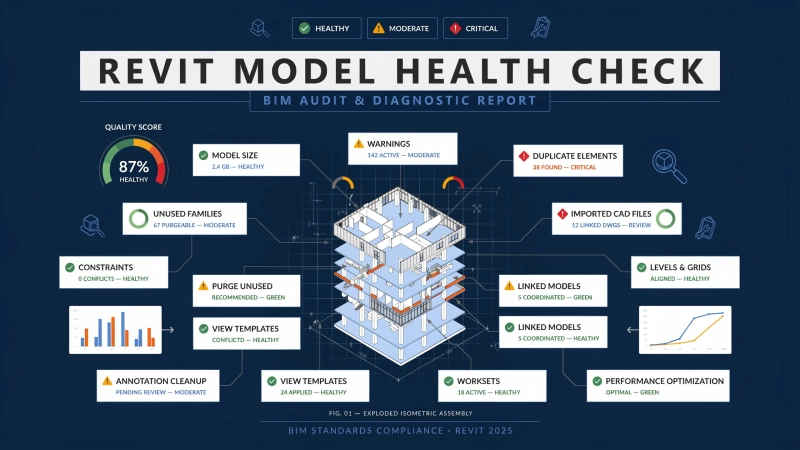
Recommended Revit Model Health Check Tools
While Revit's built-in features help maintain model quality, dedicated model checking tools provide deeper insights into project standards, performance, and overall BIM model health. These tools enable BIM professionals to identify issues early, improve collaboration, and ensure models are optimized for coordination and project delivery.
- Autodesk Model Checker for Revit – Validates Revit models against predefined BIM standards by checking naming conventions, parameters, families, and project compliance.
- CTC BIM Project Suite (Model Dashboard) – Provides a comprehensive health report by analyzing model warnings, performance, file statistics, and overall project quality.
- Ideate Explorer – Helps users quickly inspect, filter, and review model data, making it easier to identify inconsistencies, duplicate elements, and missing information.
- Revit Performance Adviser – A built-in Revit tool that automatically detects common modeling issues and recommends actions to improve model stability and performance.
- Autodesk Construction Cloud (Model Coordination) – Supports multidisciplinary model reviews by enabling clash detection, issue tracking, and coordinated model management across architectural, structural, and MEP disciplines.
Additional Health Checks Every BIM Team Should Perform
Verify Project Coordinates
Accurate project coordinates are essential for successful model federation and multidisciplinary coordination. Incorrect coordinates can lead to alignment issues between architectural, structural, and MEP models.
Review Shared Parameters
Consistent shared parameters improve schedules, tagging, quantity take-offs, and data exchange across disciplines.
Check Model Organization
Well-organized views, sheets, browser structures, and naming conventions make projects easier to navigate and reduce confusion among project teams.
Validate Before Coordination
Before issuing a model for coordination or client review, confirm that:
- Major warnings have been addressed
- Unused content has been removed
- Linked models are up-to-date
- Project coordinates are correct
- Model organization follows company standards
The file performs efficiently during navigation and synchronization
These checks help ensure that the model is ready for multidisciplinary collaboration.
Why Healthy Models Lead to Better BIM Projects
Model health is not just about software performance—it directly affects collaboration, coordination, and project outcomes.
A healthy BIM model enables project teams to:
- Collaborate more efficiently
- Reduce coordination issues
- Improve model reliability
- Deliver accurate project information
Minimize delays caused by poor model quality
Developing the habit of performing regular health checks not only improves individual productivity but also contributes to smoother project execution from design through construction.
Conclusion
Creating a BIM model is only the beginning. Maintaining its quality throughout the project lifecycle is what ensures it remains valuable to every stakeholder involved.
By regularly reviewing warnings, purging unused content, auditing models when required, monitoring file size, and optimizing overall performance, BIM professionals can keep their Revit models efficient, reliable, and ready for collaboration.
At Anita BIM Solutions, learners gain hands-on experience with industry-standard BIM workflows through live project training, practical Revit modeling, and guidance from experienced BIM professionals. Along with mastering BIM software, students learn the best practices for creating and maintaining high-quality BIM models that meet real-world industry expectations.